

Gazebo users can be assigned a role that activates a set of permissions which allow access to view pages, reports, and data, or to change data in the system.
Only users with the Administrator role can add or change users and assign them roles.
To assign a role to a user:
- Select User Administration from the navigation.
- Select the pencil icon to edit the user.
- Choose a role from the Permissions dropdown menu.
- Select Save.
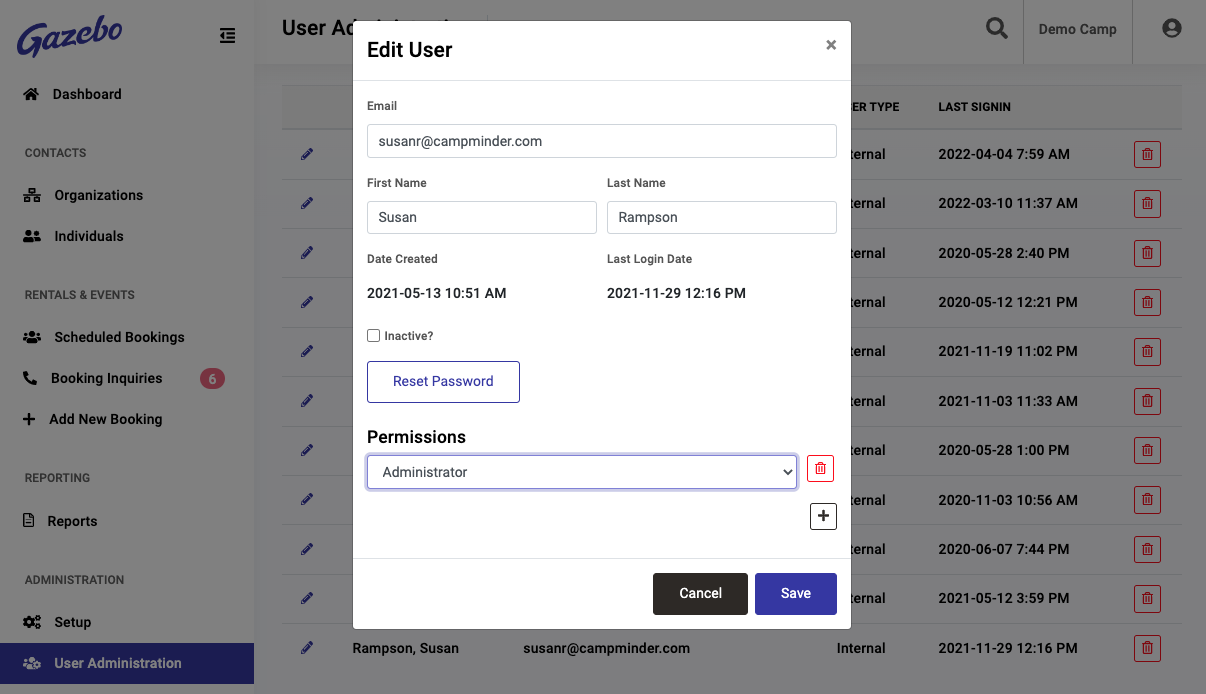
User Permissions Are Additive
You can assign more than one role to a user if you want them to have a combination of permissions that they cannot have with just one role.
For example, you may want to assign a user permissions associated with the Booking Manager role. This role can view the Invoices tab, but not create invoices or accept payments. If you want a Booking Manager to also manage financials, assign them the Booking Manager role, then select the + icon to assign them the Financial role as well.
Here is a list of the roles and their associated permissions:
| Role | Permissions |
| Administrator | Can see all pages, tabs, and reports, and make any data changes allowable for the entire subscription.
Can add internal and external users for their subscription. |
| Booking Manager | Can view and make changes to data for all bookings on the Overview, Details, Attendees, Housing, Activities, and Notes & Reminders tabs.
Can view the data on the Invoices tab. Can view and change data in the Setup for Attendees, Housing and Activities. Can view data on the Inquiries tabs, and the Pending Inquiries dashboard widget Can view the Groups with Past Due Contracts dashboard widget. Can view the Bookings reports. |
| Financial | Can add a new booking.
Can view and change the Overview, Details, Rates, Attendees, Housing, Activities, Notes & Reminders, Forms & Communications, and Invoices tabs for all bookings. Can view and change the Setup for Financials, Rate Packages, and Invoice Templates. Can view Setup for Attendees, Housing and Activities. Contract Templates, Checklist Templates and Email Templates, and Other settings tabs. |
| Housekeeping | Can view the Bookings reports.
Can view and change Setup for Inventory (within Activities Setup). |
| Kitchen | Can view the Bookings reports.
Can view and change Setup for Inventory (within Activities Setup). |
| Maintenance | Can view the Bookings reports.
Can view and change Setup for Inventory (within Activities Setup). |
External users, or Organizers have the following access and cannot be assigned any of the above roles:
- They can view any info for their booking that is made visible on the portal.
- They can change their password.
- They can download and upload documents.
- They can sign contracts.