
The Organizer Portal is an interface that your customers can use to manage details related to their event.
From the Operator Portal, you can make invoices available for viewing to your customers, aka Organizers. Organizers can then view and download invoices, as well as make payments.
Contact your Client Success Manager for help with setting up your merchant account for online payments.
This is accomplished by taking the following steps:
- Set contact types within details of the booking to “Financial” and / or “Primary”.
- Invite the contact to create a log-in to their Organizer Portal
- Make the invoice externally visible.
- The Organizer will then receive a notification and be able to log-in, view invoices, and make a payment.
Setting up contact types
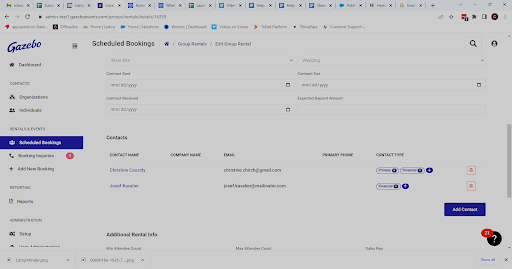
The Organizer will need to have invoices made available to them in order to process payments through the portal. Contacts set to “Primary” or “Financial” are able to view invoices and make payments.
- Locate a booking from your dashboard, the search bar, or the Scheduled Bookings page from the left navigation.
- Under the Details tab, check to see that at least one of the contacts is set as a “Financial” and / or “Primary” under contact type.
Making an invoice available on the Operator Portal
To give your event organizer access to invoices and make payments, make invoices externally visible in the portal.
- Select the Invoice tab for the booking.
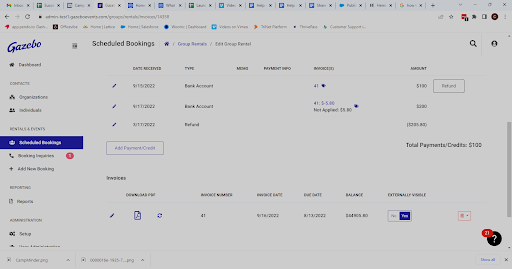
- Move to invoices and toggle “Yes” under the “Externally Visible” heading.
- Now the invoice is available for viewing on the Organizer Portal and a payment can be completed.
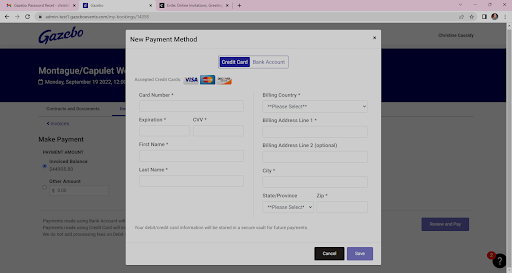
From the Organizer Portal, payments can now be made directly from the Invoices tab. Organizers are able to pay by using a Credit Card or Bank Account through the “Add New Payment Methods” function.
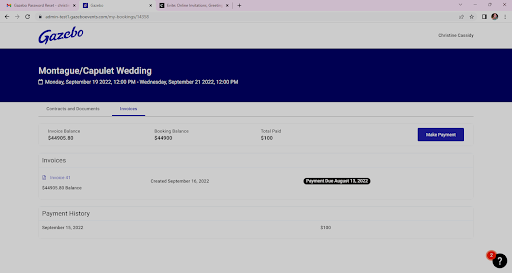
Operators can easily view their contracts and Invoices, including set due dates, on their portal. When making a payment the option to enter the balance or a different custom amount is offered.
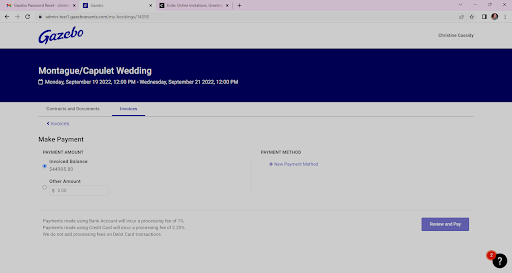
Operators can additionally add multiple payment options to their portal and automatically save them to a secure vault.