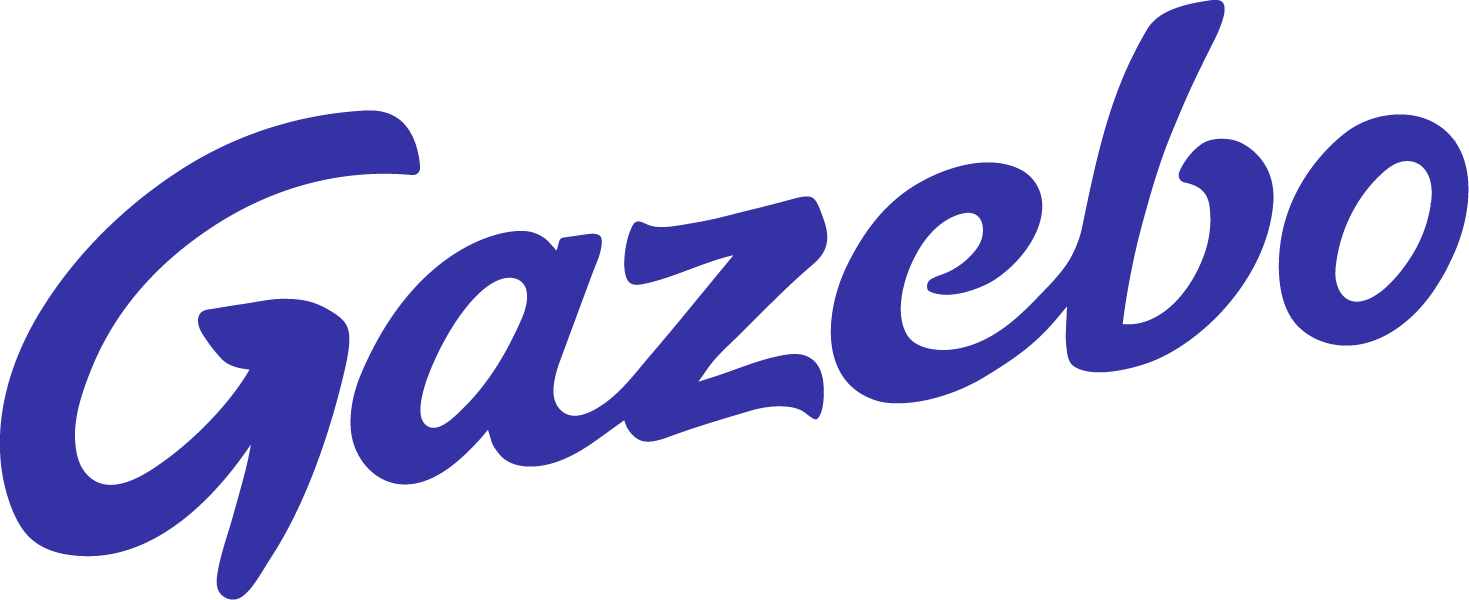
With Gazebo, It’s easy to send batch email communications to your event registrants and attendees. If you would like to receive notifications whenever a new registration is completed, you can add your personal email to the Notifications Settings under the Signup Email Confirmations list.
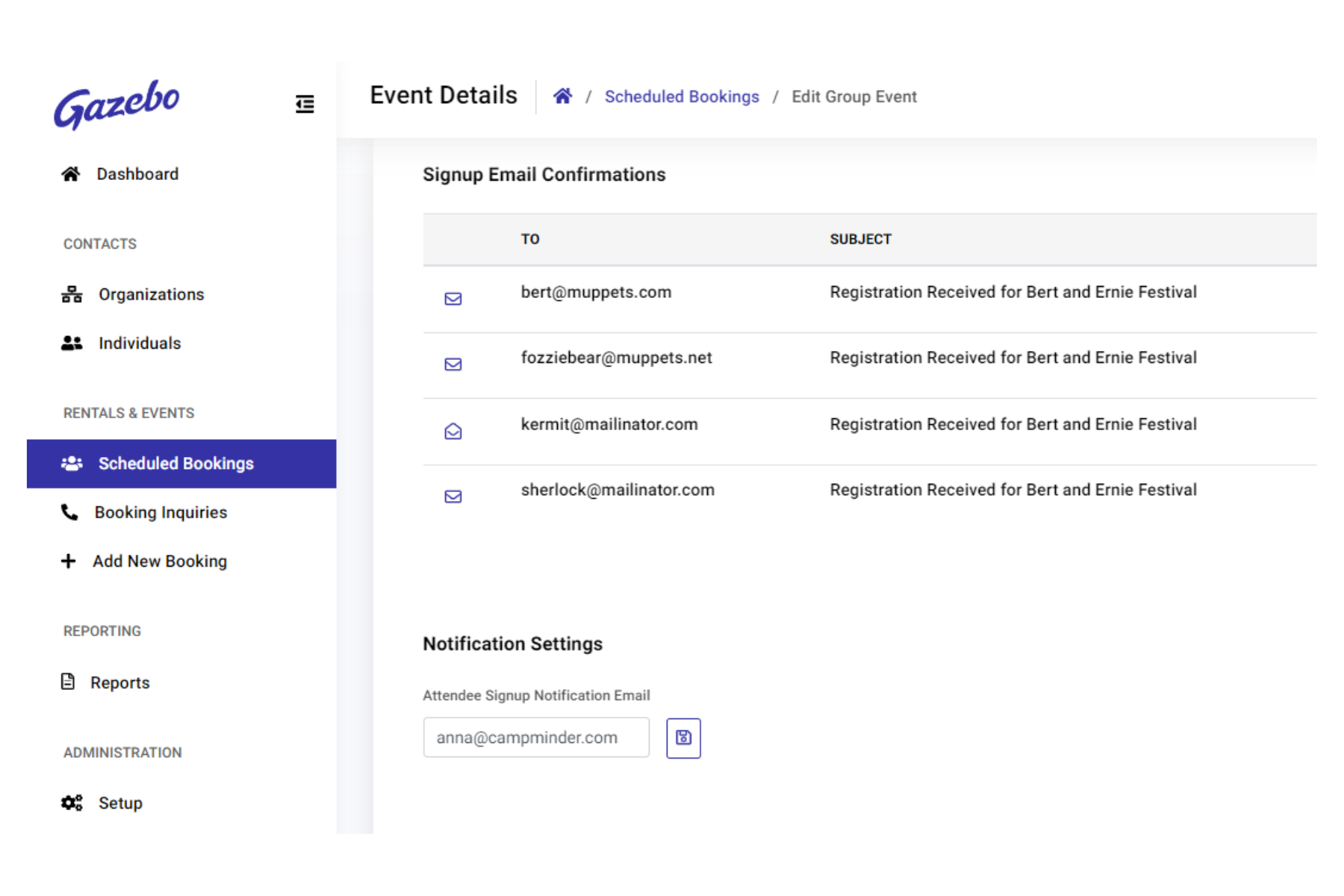
To send a batch email:
- Select Communications while within an Event.
- Select New Email from the page options.
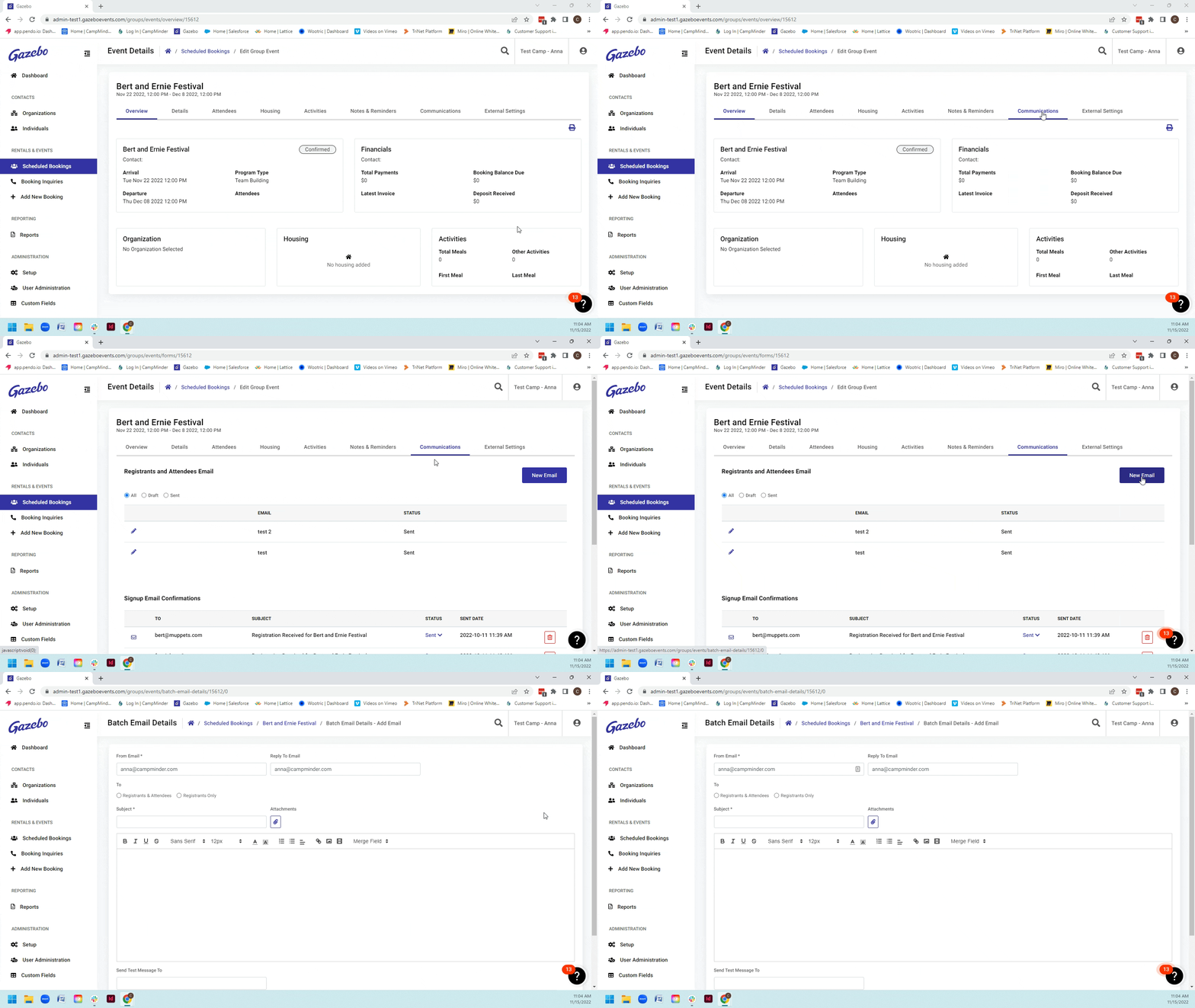
Create the Email
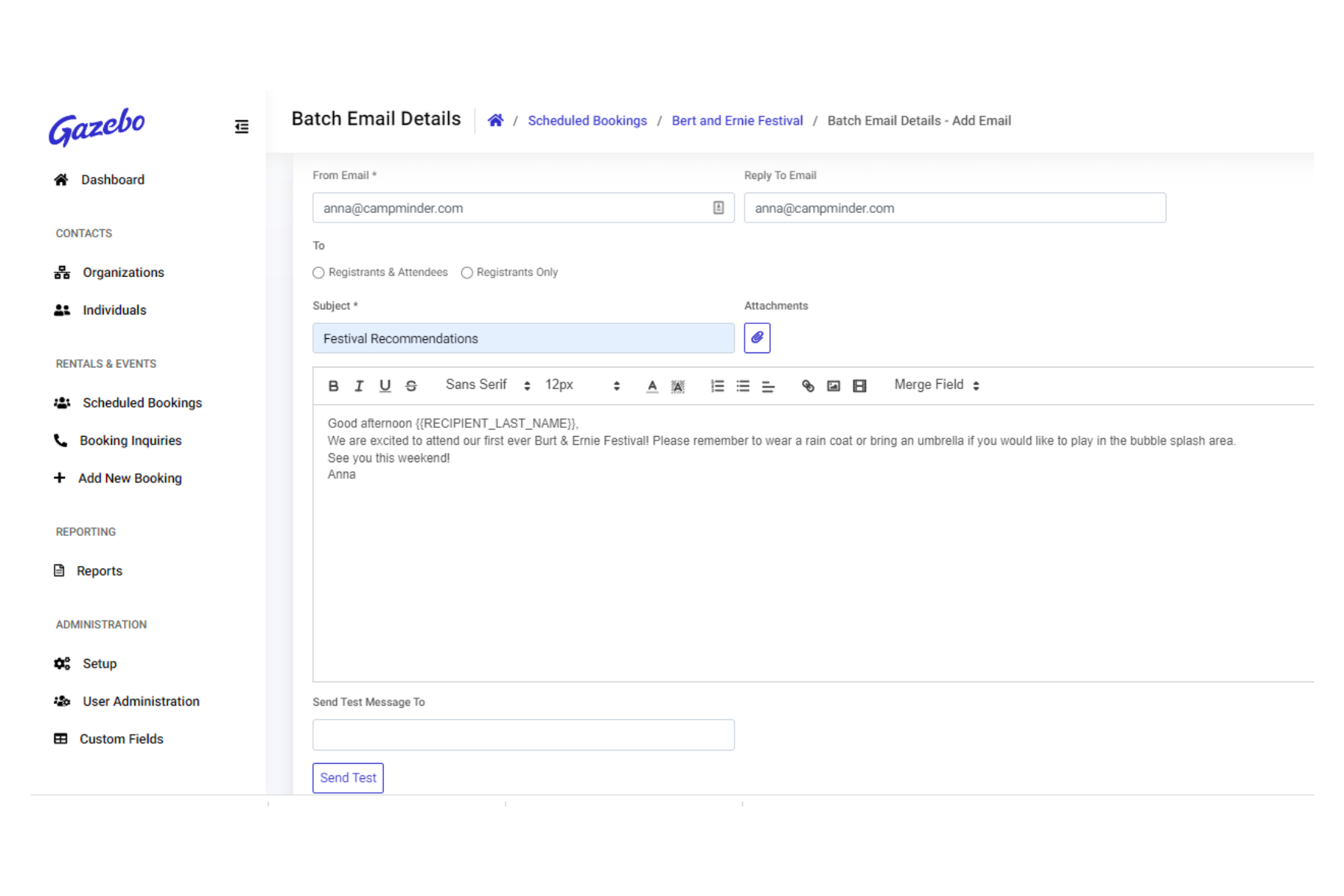
Within Gazebo, registrants have the option to sign up additional attendees or a single registration. When creating Batch emails, you will choose if you would like to send information to Registrants & Attendees, or just the Registrant.
- Choose Registrants & Attendees or Registrants Only.
- Review Recipient list – If needed, remove any individual contacts from this list.
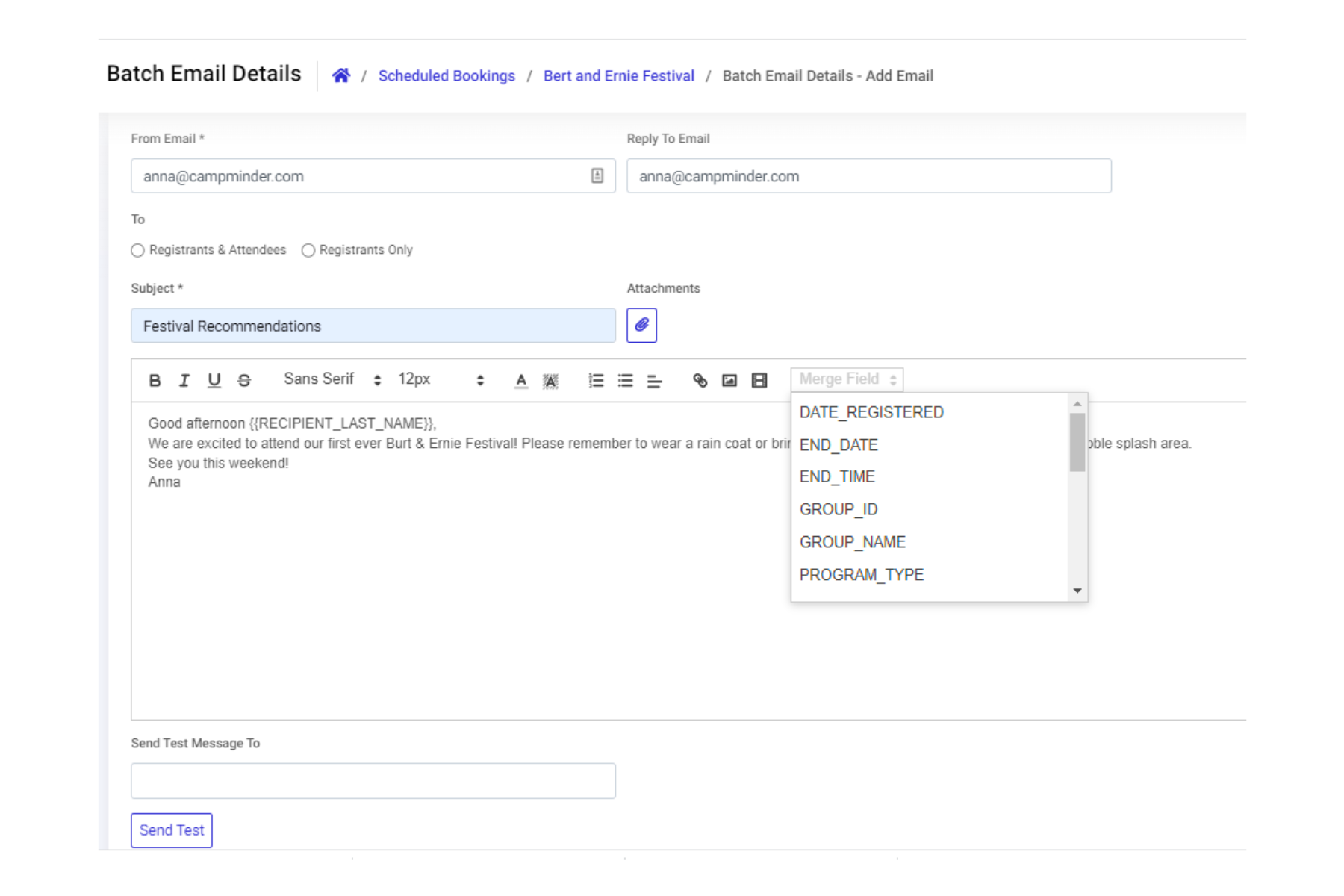
Add Merge Fields
Merge fields catered to general and specific information, allowing you to add information specific to individual registrants. Select the Merge Field needed and add to the specific location within the email body. Above, we have added the Recipients_Last_Name to the introduction.
You can save the email as a draft, send a test email to your personal account, or send the email to the recipient list.
NOTE: All email communications can be viewed within the Communications tab. Status of a sent email will update after a page refresh, and you are able to view open rate, sent date and time, and review recipients.